

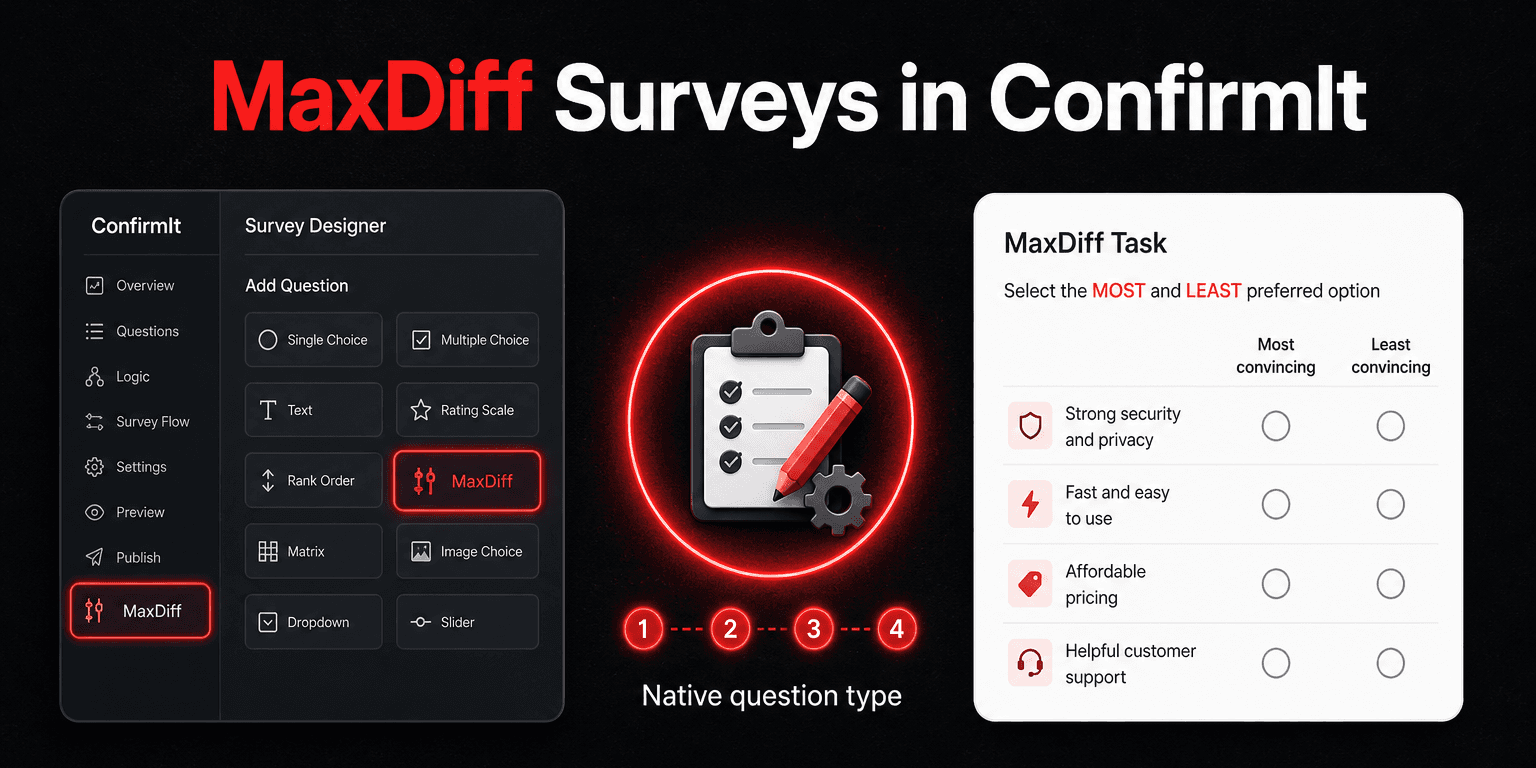
MaxDiff (best-worst scaling) is one of the more common advanced question types in ConfirmIt survey programming — and unlike Decipher, ConfirmIt ships a native MaxDiff question type you add from the designer's Add item menu. You configure page count and page size to control how many tasks respondents see. No custom loop XML, no CSS overrides, no hand-built radio grid.
This post walks through a complete ConfirmIt MaxDiff setup for an 8-item, 6-task study showing 4 items per task. By the end you will know which designer settings control the design and how to enter items with stable precodes.
ConfirmIt MaxDiff implementation overview
Each respondent sees several tasks. On each task, ConfirmIt shows a subset of items from the full pool and asks for one best and one worst pick. The platform handles paging and rotation natively — your job is to set page count, page size, and column labels, then enter every item with stable precodes.
With 8 items, 4 per task, and 6 tasks, each item appears three times on average when the math divides evenly — a practical minimum for hierarchical Bayes (HB) modeling. Keep page size at or below roughly 40% of your pool; larger sets increase cognitive load without adding much discrimination.
ConfirmIt generates the per-respondent task sequence internally. You do not need
an external design.dat file or a hand-maintained assignment matrix for
standard commercial MaxDiff work.
Part 1: Create the MaxDiff question
Open your project in ConfirmIt and go to the Design tab.
- Click Add item where the MaxDiff block should appear in the survey tree.
- Under Questions, select MaxDiff.
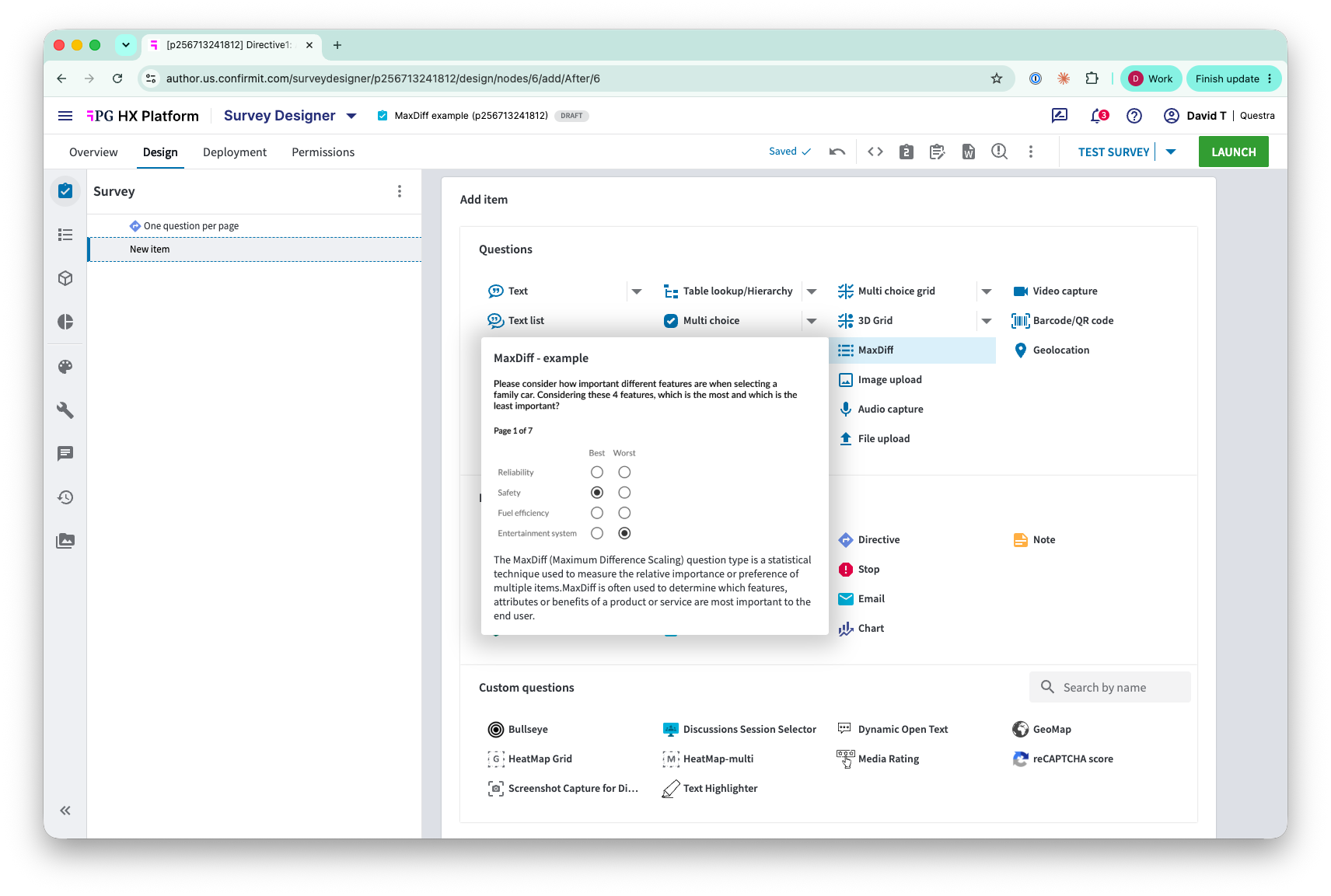
If MaxDiff is missing from this list, check that the survey theme is a V2 responsive layout — without it, this option will not appear.
- The preview tooltip describes what you are building: on each screen, respondents pick the best and worst item from a subset of your pool.
- Give the question a short routing name — for example
q1Claims. ConfirmIt uses this name in your export columns. - Place a Directive before the question if you need it on its own screen
(most MaxDiff studies do). A
Singledirective puts one question per page; the defaultMultipledirective groups questions together.
Part 2: Add answers
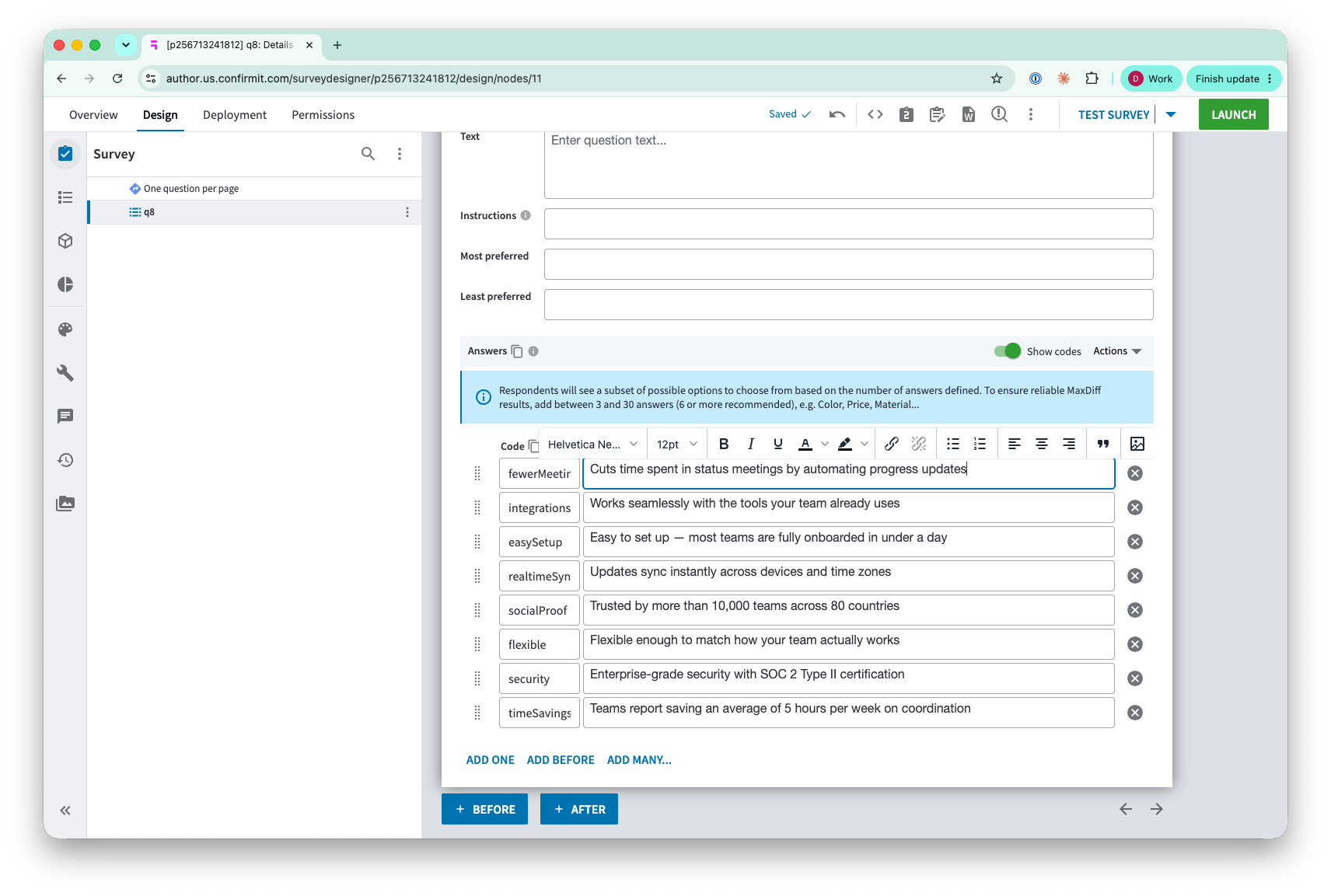
Add every item in the pool as an answer row in the question — all 8 statements, even though only 4 appear per task. ConfirmIt rotates which rows surface on each page; you do not create separate questions per task.
Use stable alphanumeric precodes as your item identifiers. These precodes are what appear in the data file and what HB software expects. For the messaging study example:
| Precode | Statement |
|---|---|
fewerMeetings | Cuts time spent in status meetings by automating progress updates |
integrations | Works seamlessly with the tools your team already uses |
easySetup | Easy to set up — most teams are fully onboarded in under a day |
realtimeSync | Updates sync instantly across devices and time zones |
socialProof | Trusted by more than 10,000 teams across 80 countries |
flexible | Flexible enough to match how your team actually works |
security | Enterprise-grade security with SOC 2 Type II certification |
timeSavings | Teams report saving an average of 5 hours per week on coordination |
Set the question Text to something like: Which statement would most or least convince you to try a new project management tool?
Randomization: If the questionnaire calls for shuffled item order within each task, change Answer list sorting from In order to Randomize. Pin any anchored rows (for example a "None of these" catch-all, if you have one) with Keep position so they do not shuffle.
Part 3: Select model dimensions
Once the answer list is in place, the Model dimensions dropdown unlocks. Until then, ConfirmIt shows Add answers then select model dimension and you cannot set page count or page size.
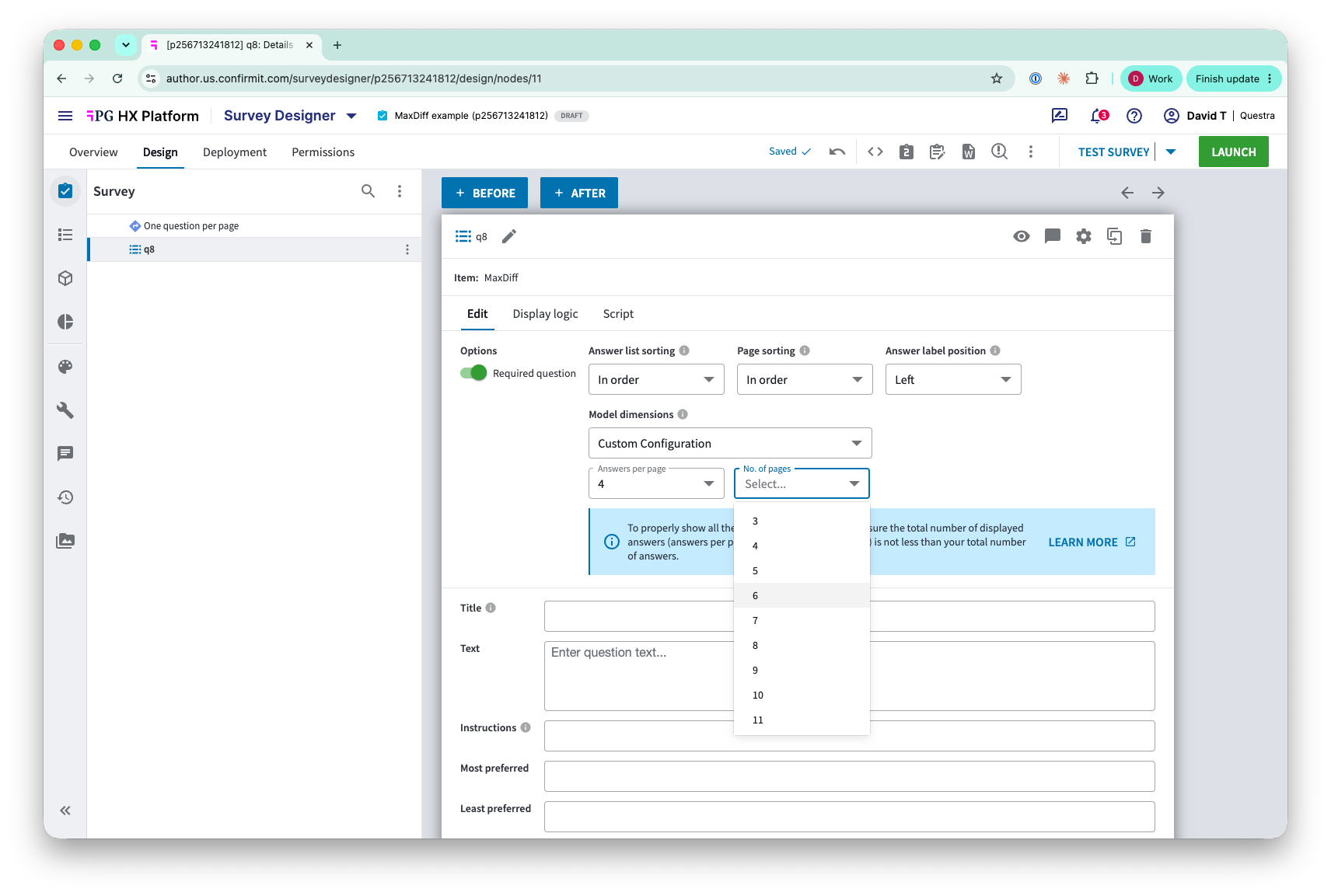
Open Model dimensions and choose Custom Configuration, then set:
- Answers per page →
4for this example - No. of pages →
6for this example
ConfirmIt uses these values to control how many items appear on each screen and how many tasks each respondent completes. The blue info banner reminds you that answers per page multiplied by number of pages should be at least your total answer count so every item can appear across the design.
Part 4: Set column labels
Enter the labels respondents see above the best-worst radio columns:
- Most preferred:
Most convincing - Least preferred:
Least convincing
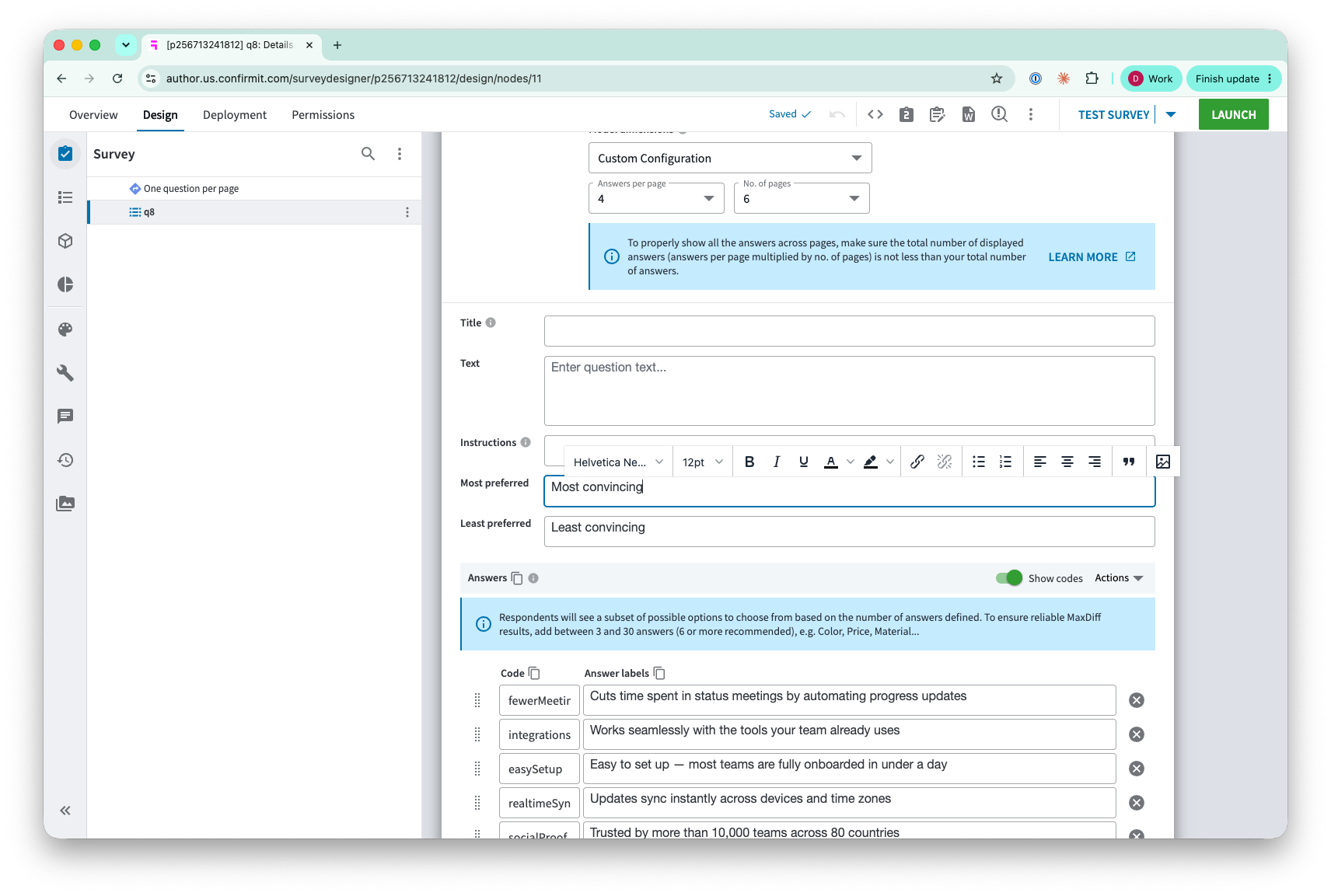
These map to the left and right columns in the MaxDiff grid. With Answer label position set to Left, item statements appear in the center between the two columns.
Preview: Run a test link and click through all six tasks. Confirm that exactly four items appear per screen, that best and worst are mutually exclusive, and that you cannot advance without selecting both columns on each task.
How Questra handles this automatically
The designer steps above are what ConfirmIt programmers do by hand. Questra generates the same structure from a study definition — items, page size, page count, labels — and exports a ConfirmIt survey package with the MaxDiff Multi question, routing placement, and stable precodes. You review in the ConfirmIt importer; the native MaxDiff question arrives configured, not as a pile of XML to reverse-engineer.
That is the broader pattern for survey programming on ConfirmIt: describe the study once, import a package that matches how experienced programmers would have built it in the designer.
If you program MaxDiff in ConfirmIt regularly, or need the same study on Decipher and ConfirmIt from one source, learn more about Questra at questra.ai.